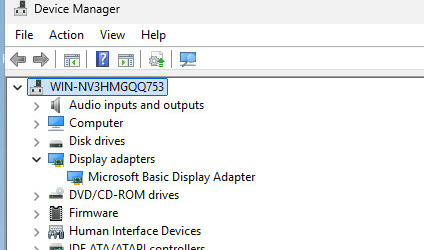
How to Disable B8016 CPU iGPU Function
This article provides a solution for disabling the CPU integrated GPU (iGPU) on the B8016 platform via BIOS settings, addressing scenarios where the AMD Radeon Graphics device needs to be removed from the operating system’s device manager.
Overview
To disable the iGPU on the B8016, follow these steps:
- Update BIOS — Ensure the B8016 is running BIOS v9.00 (0x30) or later before making changes.
- Navigate to GFX Configuration — Access the iGPU-related settings under the AMD CBS menu in BIOS.
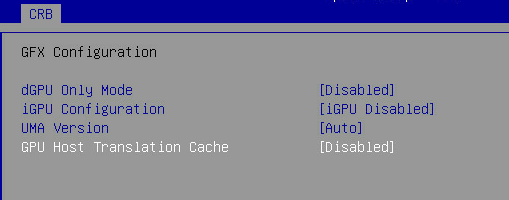
- Apply the Required Settings — Disable dGPU Only Mode, iGPU Configuration, and GPU Host Translation Cache.
- Save and Reboot — Save the BIOS changes and reboot the system to apply them.
Note: After applying these settings, “AMD Radeon Graphics” will disappear from the Windows Server 2025 Device Manager.
Prerequisites
| Item | Requirement |
|---|---|
| BIOS Version | v9.00 (0x30) or later |
| Operating System | Windows Server 2025 |
| Access Required | Physical or remote KVM access to BIOS |
BIOS Configuration
1. Enter BIOS Setup
Power on or reboot the B8016 and press the appropriate key to enter BIOS Setup during POST.
2. Navigate to GFX Configuration
Advanced → AMD CBS → NBIO Common Options → GFX Configuration
3. Apply the Required Settings
Change the following three settings from their defaults:
| Setting | From | To |
|---|---|---|
| dGPU Only Mode | [Auto] |
[Disabled] |
| iGPU Configuration | [Auto] |
[iGPU Disabled] |
| GPU Host Translation Cache | [Auto] |
[Disabled] |
4. Save and Reboot
Press F10 (or the Save & Exit option) to save the changes and reboot the system.
Verification
After the system reboots, open Device Manager in Windows Server 2025 and verify the result under Display Adapters.
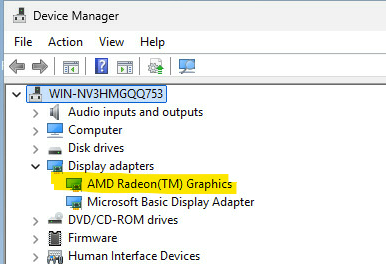
Before
AMD Radeon(TM) Graphics is listed under Display Adapters in Device Manager.
After
AMD Radeon(TM) Graphics no longer appears in Device Manager. Only Microsoft Basic Display Adapter remains.